Success
If you have an .epub file and you are not sure what to do with it, this guide explains how to read EPUB on iPhone and iPad step by step. EPUB is the standard, open format for ebooks, and iOS can read it natively, but a few minutes of setup makes the experience far better. We will cover opening a book you already have, choosing a reader app, importing a whole library from the cloud or from Calibre, and tuning the page so it is comfortable to read.
Everything here works the same on iPhone and iPad. The only real difference is screen size, which mostly affects layout and how many columns of text you see.
What is an EPUB file?
EPUB (.epub) is the most common ebook format. Unlike a PDF, an EPUB reflows text to fit your screen, so font size, spacing, and margins all adjust to you instead of locking you into a fixed page. That reflowing is exactly why the reader app you choose matters: it controls how much of that flexibility you actually get.
How to read an EPUB you already have
If an EPUB is already on your device, for example downloaded from email, Safari, or saved in the Files app, you have two quick options:
- Open it from the Files app. Find the .epub file, tap it, and iOS will offer to open it in Apple Books by default.
- Use the Share sheet. Tap the share icon next to the file, choose "Open in" or "Copy to", and pick the reading app you want to use.
That is enough to start reading immediately. The catch is that opening into the default app gives you that app's limits, so most readers quickly want a dedicated reader with more control.
Step 1: Choose a reader app
iOS will happily open EPUBs in Apple Books, and for casual reading that is fine. But if you own your files, keep a large library, or care about fonts and margins, a dedicated EPUB reader is worth installing. The main differences between apps come down to:
- Whether you can load your own fonts.
- Whether you can set exact margins and reclaim screen space.
- Whether each book can remember its own settings.
- Whether the app stays smooth with thousands of books.
We compare the full field in our best EPUB reader apps for iPhone and iPad comparison. On the iPad specifically, a reader with a proper two-column layout makes a big difference, which is what the EPUB reader for iPad page focuses on.
Step 2: Get your books into the app
Reading one EPUB is easy; the real question is how to bring in a whole collection. There are three common paths on iOS:
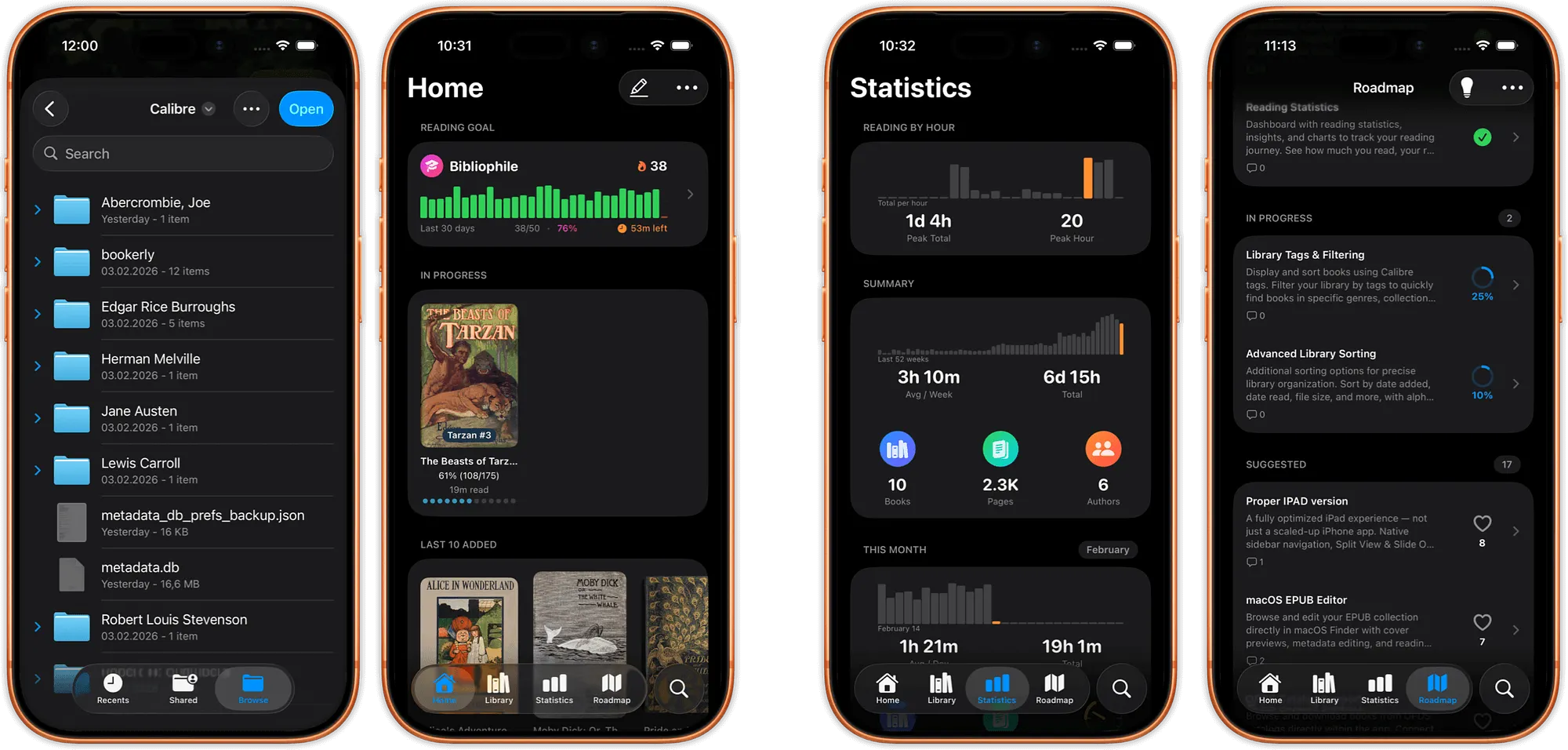
- From a cloud folder. If your EPUBs live in iCloud Drive, Dropbox, or Google Drive, a good reader can open them directly from those folders without importing and duplicating every file into its own sandbox. This keeps your library in one place and saves storage.
- From Calibre. If you manage your ebooks on a computer with Calibre, you can keep your phone in sync rather than transferring files by hand. See Calibre library sync for the workflow.
- From an OPDS catalog. If you run a home server or use an OPDS-compatible service, an OPDS reader lets you browse and download straight into the app.
However you load them, a reader built for large collections will sort sensibly (by author surname, then title, with series kept in order) so you can actually find things. The ebook library page shows how that scales to thousands of books.
Step 3: Set up the page so it is comfortable
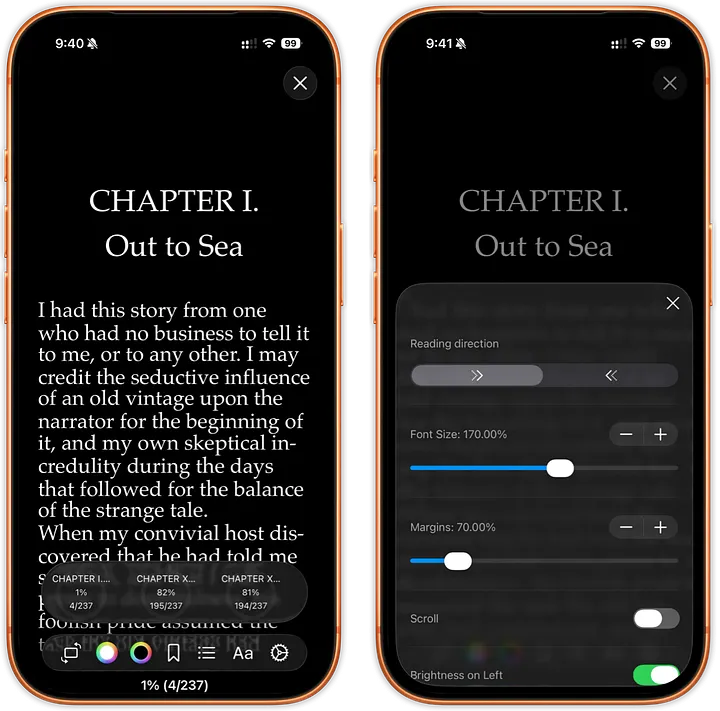
This is the step most people skip, and it is the one that makes reading on a phone genuinely pleasant. Once your book is open, look for the text or display settings and adjust:
- Font and size. Pick a typeface that is easy on your eyes; some apps let you load your own font files.
- Margins. Reduce them to fit more text on screen and turn pages less often.
- Line spacing and width. A little more space between lines reduces fatigue on long sessions.
- Colors / theme. Use a darker background or a warm tone at night to cut glare.
- Orientation. If you read lying down, a landscape lock keeps the book in landscape even when your phone is upright.
If you want each book to keep its own look, choose an app with per-book settings so your novel and your reference manual do not have to share a layout. Our guide to the best customizable EPUB reader for iPhone goes deeper on fonts, themes, and margins, and the customization overview shows what is possible.
Step 4: Read on iPad
On iPad, everything above still applies, with more room to work. A larger screen suits a two-column layout that reads like an open book, and the extra width makes custom margins and line spacing even more noticeable. If the iPad is your main reading device, it is worth picking an app that takes advantage of the screen rather than just stretching the iPhone layout.
Quick troubleshooting
- The EPUB will not open. Make sure the file is actually .epub and not a .zip or DRM-protected store file. Store-locked books from Kindle or Apple only open in their own apps.
- Fonts or layout look wrong. Some EPUBs embed their own styling; switching the app's font override on or off usually fixes it.
- Files keep duplicating. Read directly from your cloud folder instead of importing, so you keep a single copy.
You are ready to read
Reading EPUBs on iPhone and iPad comes down to three things: open the file, get your library in, and tune the page to your eyes. Do that once and reading on iOS stops feeling like a compromise. If a specific file refuses to cooperate, the EPUB will not open walks through why, and getting books onto the phone without iTunes covers the part Apple stopped documenting. To go further, compare the best EPUB reader apps, or browse all of our reading guides and comparisons.
← Back to Guides