Comics Manga How It Works Reviews FAQ Try Free for 14 Days

Open CBZ and CBR Comics on iPad

Your comics and manga open in the same library as your books. CBR archives are repacked the moment they come in, so there is nothing to convert, and a manga that carries its own ComicInfo.xml opens right to left without being asked. iPhone and iPad.

Free 14-Day Trial No Account Needed
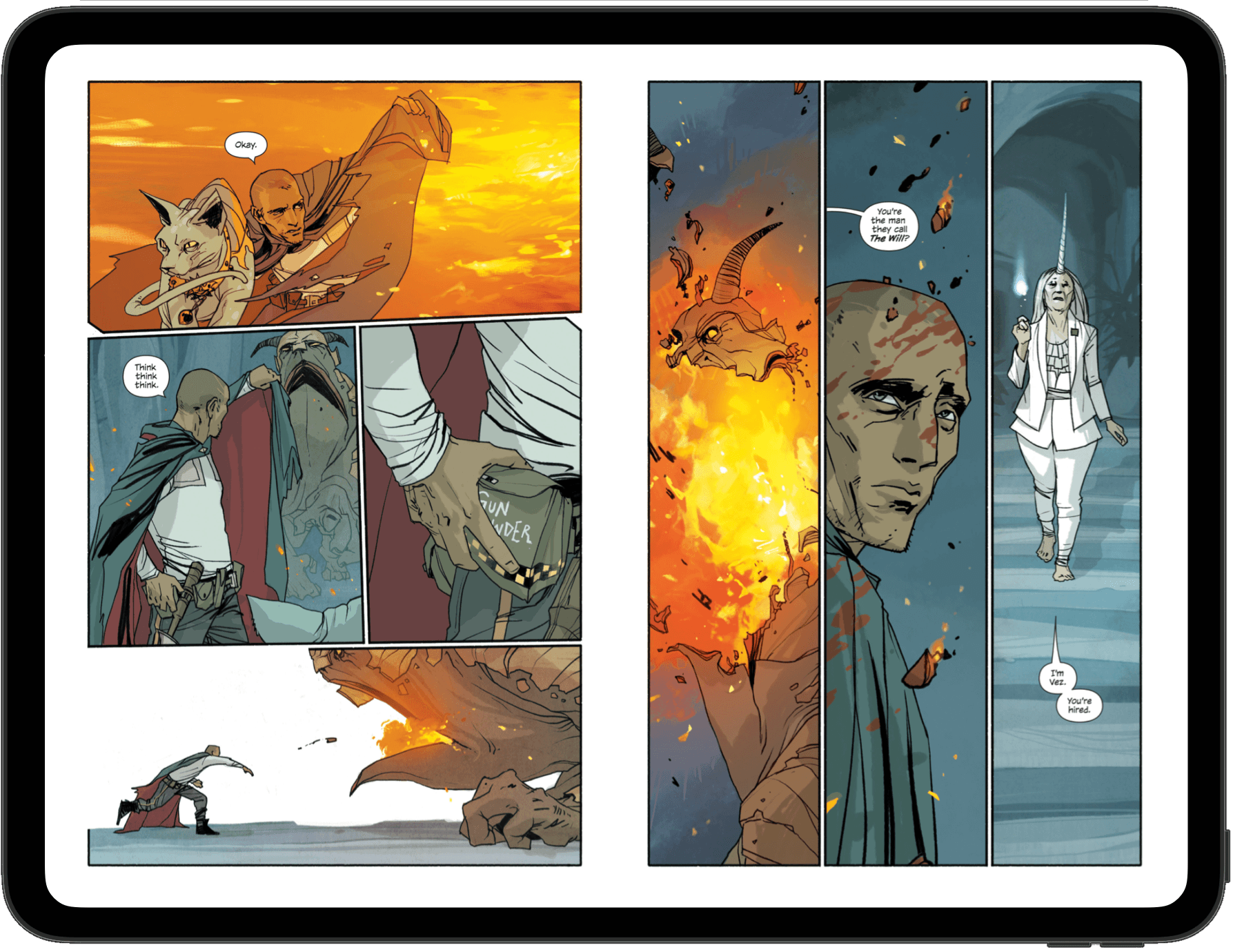
A two-page comic spread filling an iPad held in landscape, the panel art running edge to edge.

One Page, a Two Page Spread, or Auto

Read a comic one page at a time, as a two page spread, or leave it on Auto and let the reader follow the device. Turn an iPad to landscape and the spread appears on its own; turn it back and you are on single pages again.

Fit the page the way you like it and pick the colour that sits behind it, so a scan that does not match the shape of the screen is framed the way you want rather than the way the file decided.

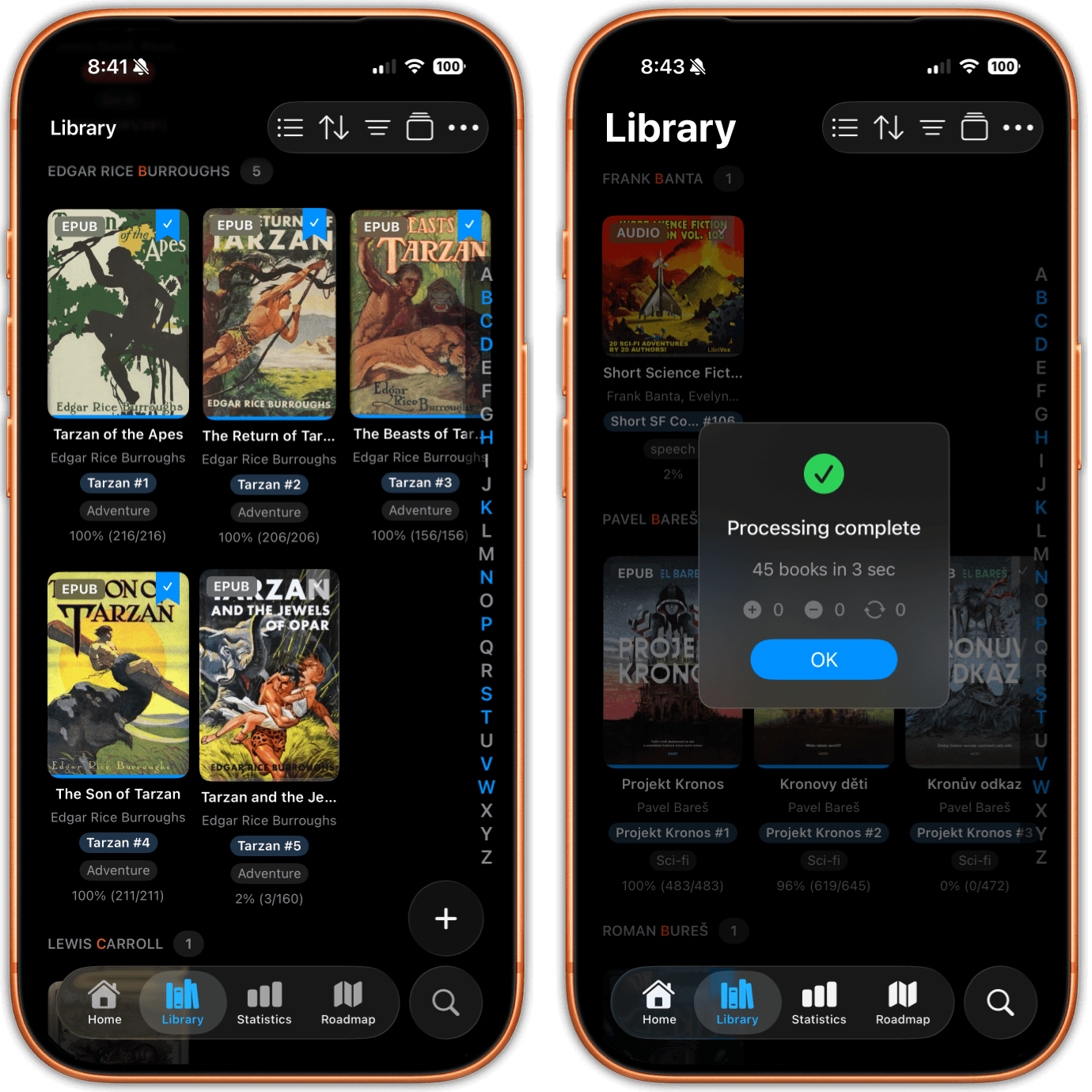
A library of covers grouped by author, each cover carrying the badge for its format.
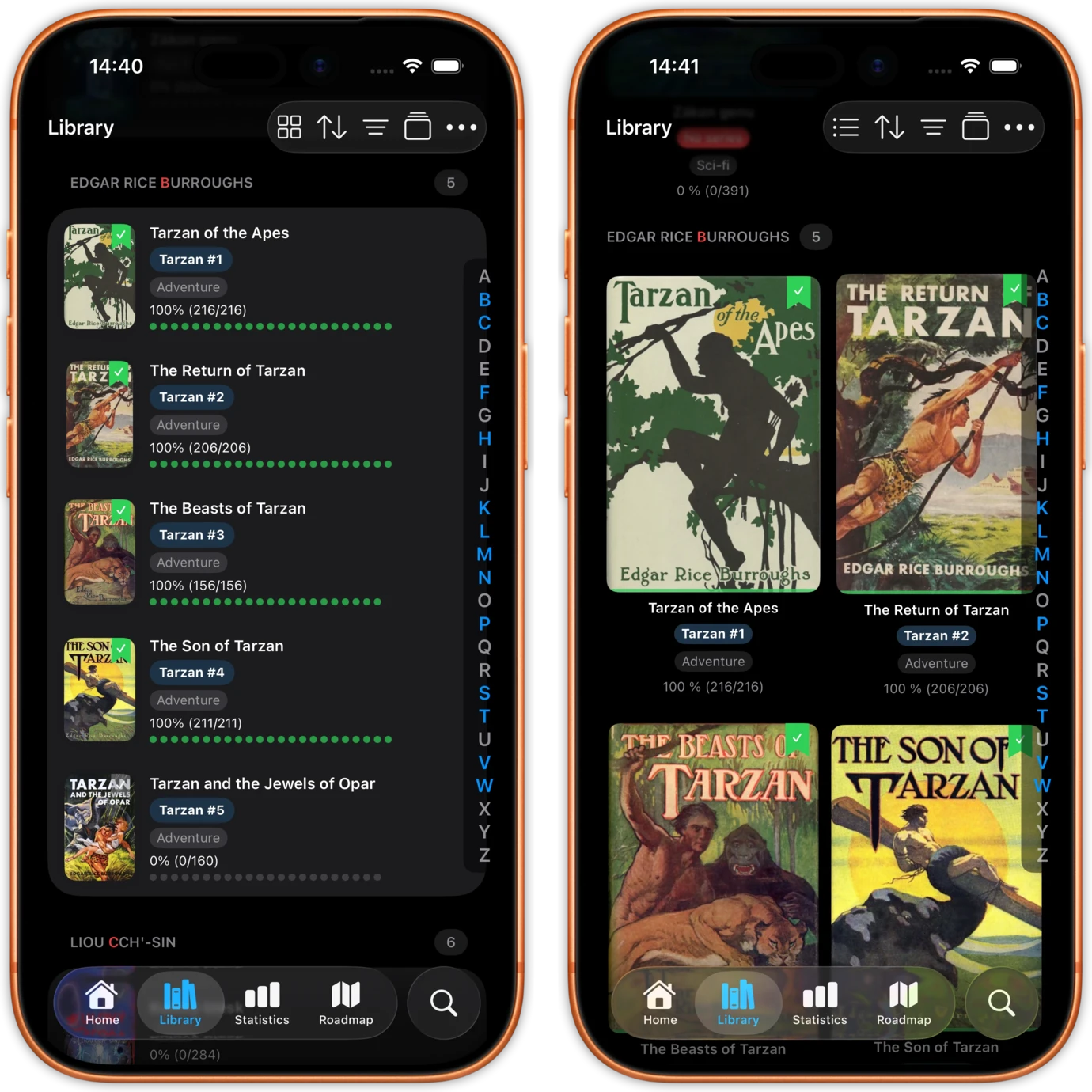
The same library shown on two iPhones, once as a list and once as a grid of covers.

Comics Live in the Same Library as Your Books

There is no separate comics tab and no second app to keep in sync. CBZ and CBR files land in the same library as your EPUBs, PDFs and audiobooks, each with a comic badge on the cover. Filter by format to see only comics, or tap the chip twice to see everything except comics.

They count, too. Time spent on a comic feeds the same streaks, the same daily goal and the same statistics as time spent on a novel, instead of disappearing into an app that tracks nothing.

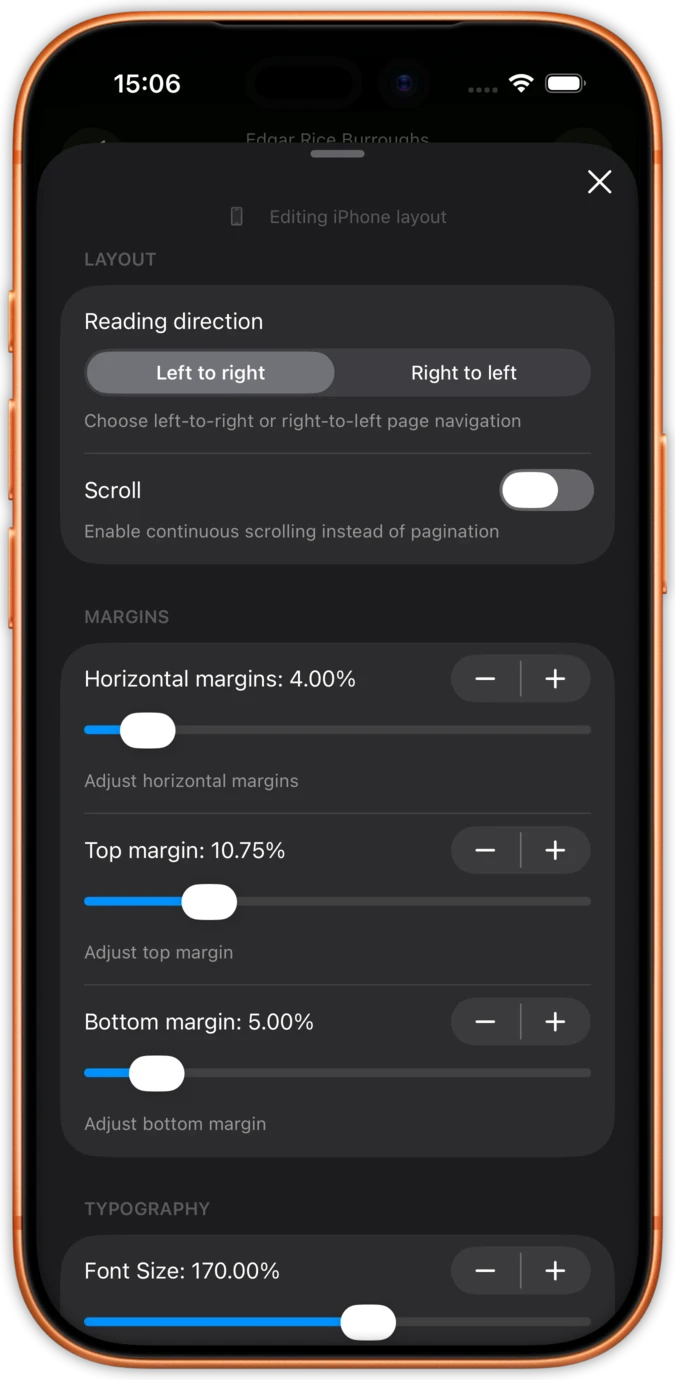
The reader settings sheet with the reading direction control offering left to right and right to left, shown over a novel.
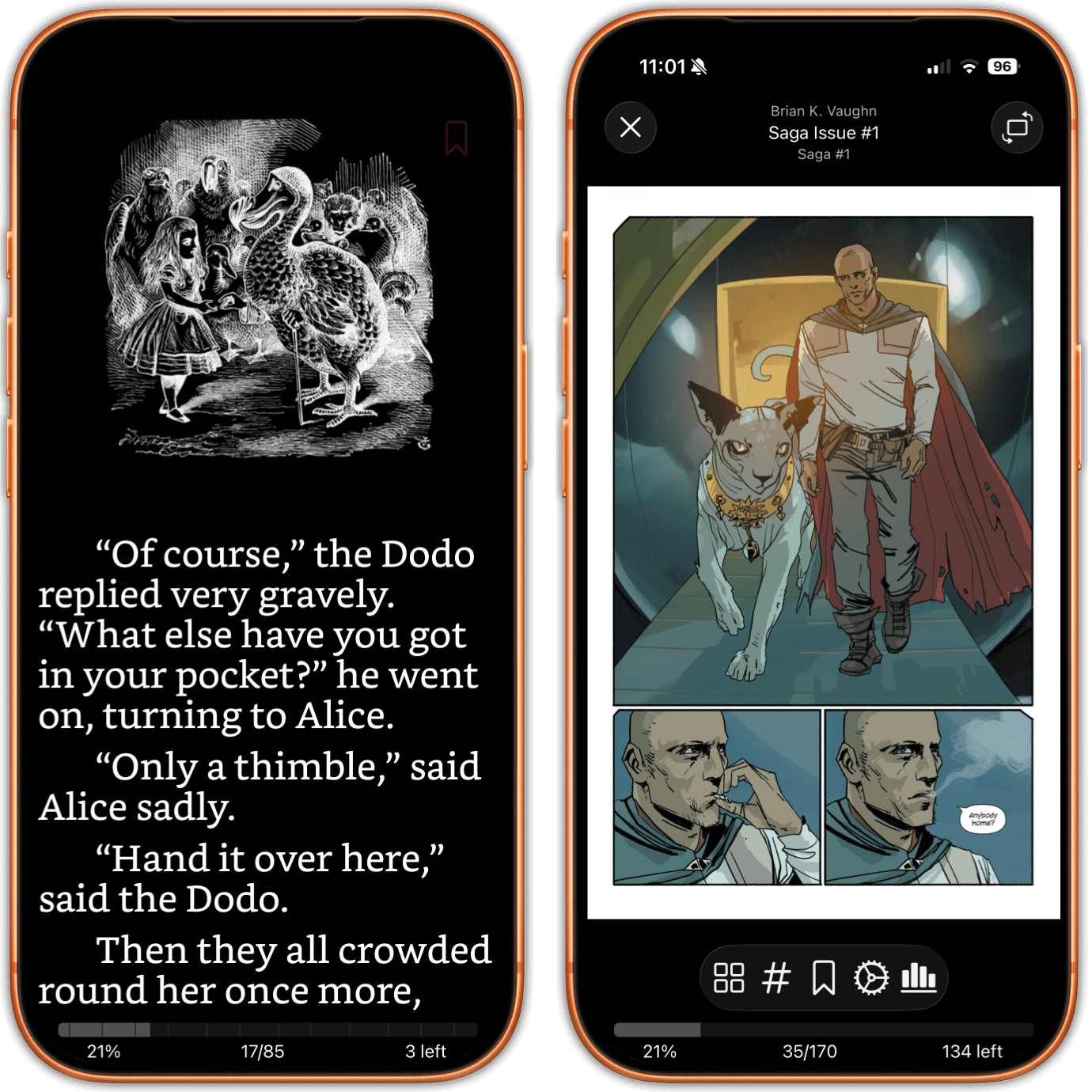
Two iPhones side by side, a novel open on the left and a comic page on the right with its comic toolbar and page number.

Manga That Opens Right to Left on Its Own

Reading direction has three settings: Auto, left to right, and right to left. Most of the time you will never touch it, because a manga that carries a file named exactly ComicInfo.xml at the root of its archive already says which way it reads. When that file's Manga element is set to YesAndRightToLeft, the comic opens right to left with nothing set by you.

That is metadata, not a guess at the language or the filename. When an archive carries no metadata at all, nothing can read a direction that was never written down, so you choose right to left once and carry on reading.

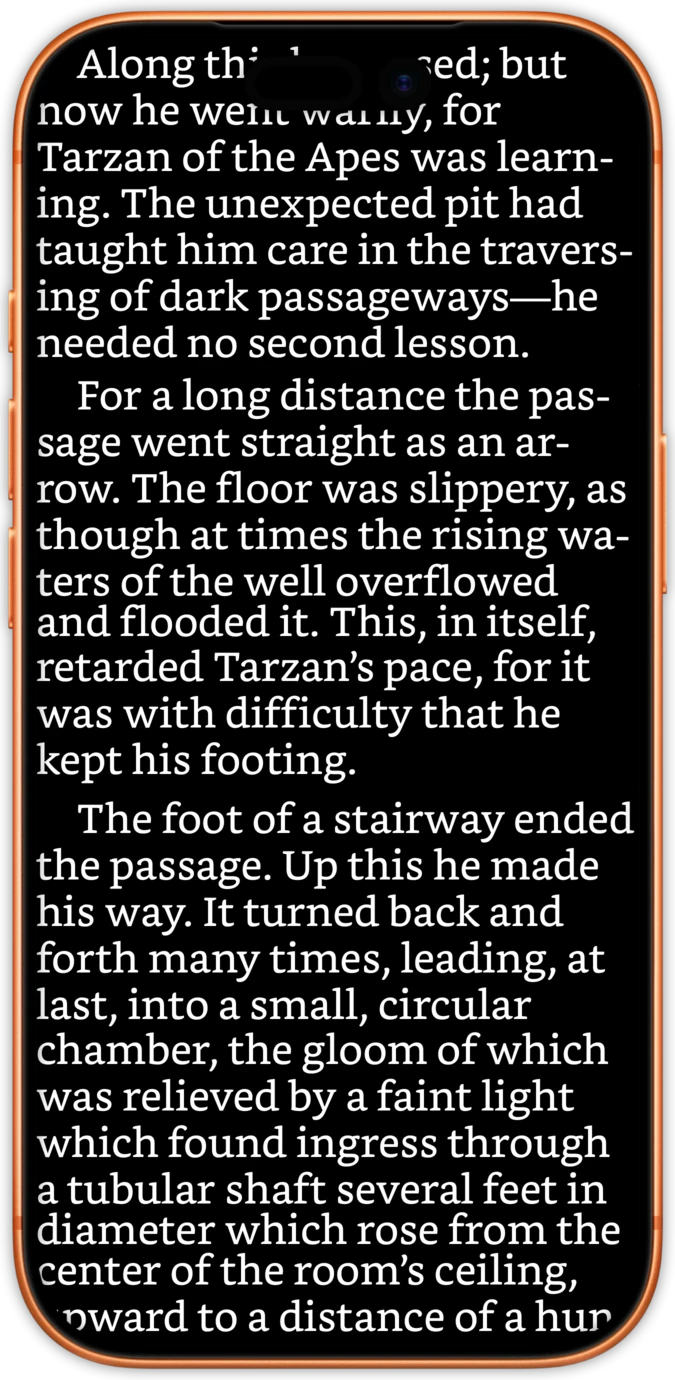
A page of a novel filling the entire screen with no toolbar over it.
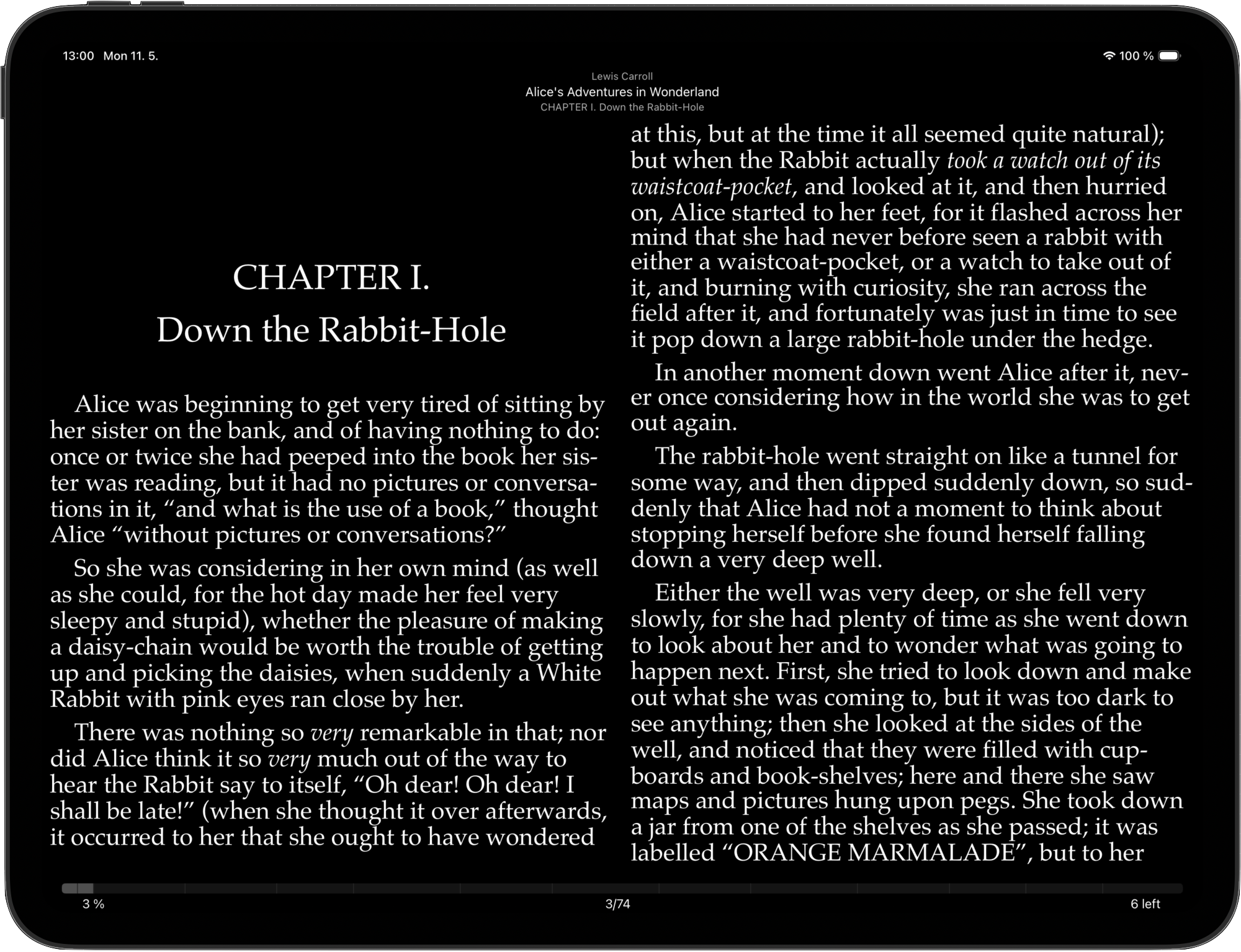
An iPad in landscape showing a novel laid out in two columns.

Pinch to Zoom, Double Tap to Go Closer

Pinch to zoom into a panel, or double tap to jump straight to three times the size, centred on the exact spot you tapped rather than on the middle of the page. Small lettering on a dense page stops being a reason to give up.

When you need to move, a grid of page thumbnails takes the place of a table of contents, because a comic has no chapters to list. There is a go to page control as well: type the number and you are there.

From a File to a Comic in Three Steps

01

Bring the Files In

Import CBZ and CBR files straight from the Files app, or point justRead at a folder that iCloud Drive, Dropbox or Drive already syncs into Files. You can also download comics from an OPDS catalogue such as Komga, Kavita, calibre-web or COPS.

02

CBR Is Repacked on Import

iOS expands a ZIP on its own but never a RAR, which is why tapping a CBR in Files gets you nowhere. justRead repacks CBR archives as they are imported, so they open like any other comic and nothing has to be converted by hand.

03

Open It and Read

Choose single page, a two page spread, or Auto and let the device decide. Reading direction is Auto, left to right or right to left, and a manga carrying a ComicInfo.xml is already right to left when it opens.

Why justRead Is the Best Comic Reader for iPad

What sets justRead apart from the dedicated comic readers on iOS

No Conversion Step

iOS has no built-in way to unpack a RAR archive, so a CBR sits in Files doing nothing, and most advice sends you off to a desktop to rebuild the file before you can read it.

justRead repacks CBR archives when they are imported. There is nothing for you to convert, no converter app in between, and nothing is converted while you read.

Manga Direction from the File

Most comic readers ignore the metadata inside the archive, so every manga volume starts the wrong way round until you find the toggle and flip it yourself.

A comic carrying a ComicInfo.xml opens right to left with nothing set. The direction comes out of the file, and you can still override it with Auto, left to right or right to left.

One Library, Not Three Apps

A dedicated comic reader keeps your comics in its own app, away from the novels, the PDFs and the audiobooks, with its own progress and its own statistics that nothing else can see.

Comics sit beside everything else with a comic badge, a format filter and an exclude filter, and they count toward the same streaks, goals and statistics as the rest of your reading.

Loved by Readers

See what readers are saying on the App Store

★ 4.6 / 5 · 24 App Store ratings

Frequently Asked Questions

Everything you need to know about reading comics and manga in justRead

No. CBR archives are repacked when they are imported, so afterwards they open exactly like a CBZ, and the reader converts nothing while you read. You do not need a desktop or a converter app in between.

Reading direction has three settings: Auto, left to right, and right to left. If the archive contains a file named exactly ComicInfo.xml at its root, and that file's Manga element is set to YesAndRightToLeft, the comic opens right to left with nothing set by you.

Nothing can read a direction that was never written down, so no app can know. Set reading direction to right to left yourself and read on. Adding a ComicInfo.xml to the archive on a computer works too, and it is the same file that servers like Komga and Kavita already read.

CBZ and CBR. CBT, CB7 and folders of loose images are not supported, and neither is anything with DRM on it. PDFs open as PDFs, in the same library.

Yes. Comics count toward your streaks, your daily goal and your statistics in the same way a novel does, because they sit in the same library rather than in a separate app.

Yes, over OPDS. Add the catalogue once, browse it by category or search it, and comic downloads land straight in your library alongside everything else. Komga, Kavita, calibre-web and COPS all speak OPDS, and so do plenty of smaller servers.

A grid of page thumbnails takes the place of a table of contents, because a comic has no chapters to list. There is also a go to page control: type the number and you are there. Pinch to zoom into a panel, or double tap to jump to three times the size on the exact spot you tapped.

There is no panel by panel guided view, and no comic store, streaming service or catalogue to buy from, so you bring your own files. Highlights, notes, bookmarks, in-book search, the dictionary and metadata editing belong to EPUB and PDF rather than to comics, and Read Aloud does not apply to a comic. justRead is an iPhone and iPad app; there is no Mac, Android or desktop version.

Start Reading Your Comics and Manga Today

Download justRead, drop your CBZ and CBR files in, and read them beside the rest of your library. Free 14-day trial, no account needed.

Free 14-Day Trial No Account Needed